
Variables in Python
Suppose we're writing a greeting program. We don't know the user's name in advance: it will only appear when the program runs. So in our code we need a way to refer to that future name without knowing it yet. That's exactly what variables are for.
Python 3.13name = "John" print("Hello, " + name + "!")
In this code name is a label that tells Python where the string "John" lives in memory. Whenever name appears later, Python looks at what the label points to and substitutes the value.
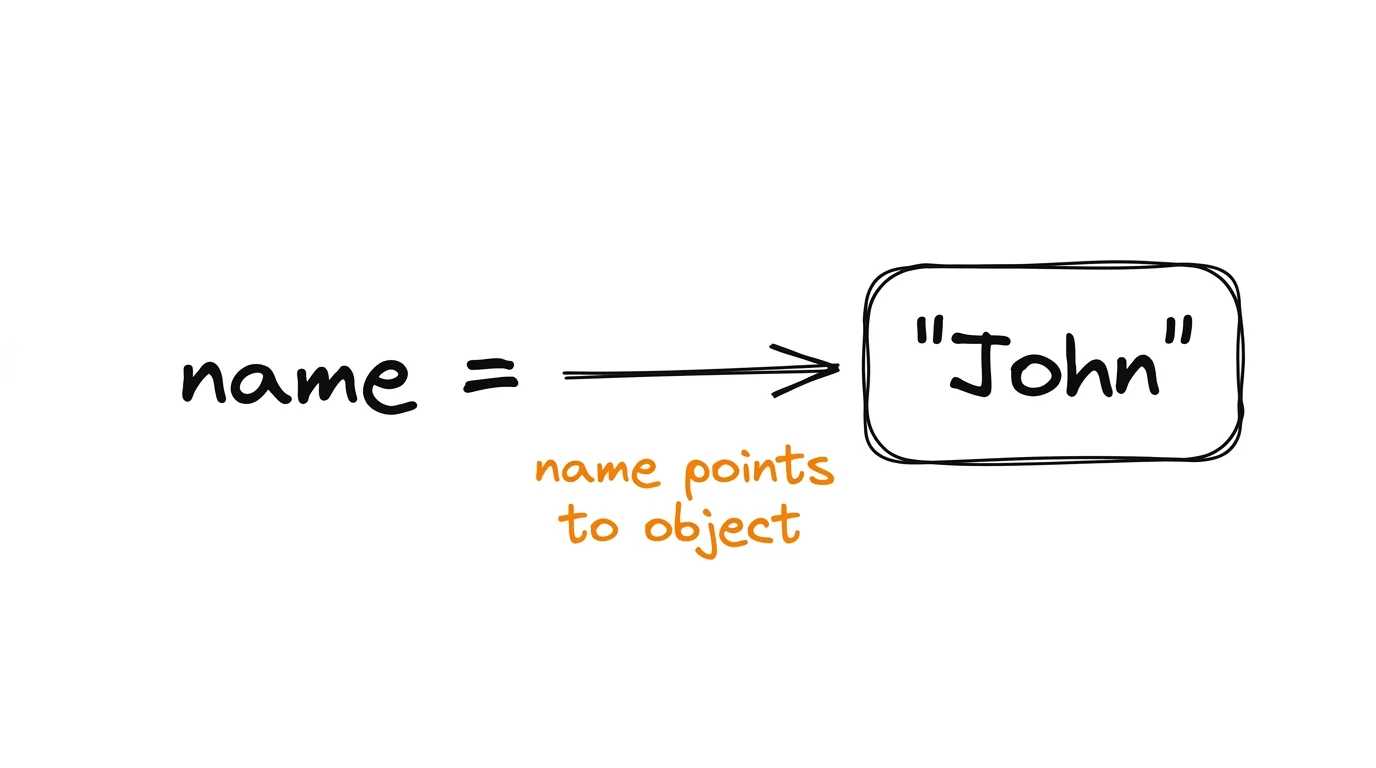
What is a variable?
Three conveniences follow from this:
- you don't have to declare a variable beforehand: it appears on the first assignment
- you don't have to specify the type: Python sees what's on the right and remembers
- you can rebind a name to another value at any moment
Creating and using variables
A variable is created with the = operator. The name goes on the left, the value the name will point to goes on the right:
Python 3.13# Creating variables of different types name = "John" # String variable age = 25 # Integer variable height = 1.85 # Float variable is_student = True # Boolean variable courses = ["Python", "SQL", "JavaScript"] # List variable
Once created, you can use the name anywhere its value is needed:
Python 3.13name = "John" print("Hello, " + name + "!")Hello, John!age = 25 next_year_age = age + 1 print(f"Next year you'll be {next_year_age} years old")Next year you'll be 26 years old
Notice the letter f before the quotes in the second example. It means that inside the string you can write variable names in curly braces, and Python will substitute their values. These are called f-strings, and you'll meet them often from here on — we'll cover them properly in the chapter on strings.
Multiple assignment
The most common use is unpacking: a collection on the right, several names on the left. They receive the values in order:
Python 3.13coordinates = (10, 20, 30) x, y, z = coordinates print(f"x={x}, y={y}, z={z}")x=10, y=20, z=30
The same logic gives an elegant way to swap two variables without a temporary one:
Python 3.13a = 5 b = 10 a, b = b, a print(f"a = {a}, b = {b}")a = 10, b = 5
The right side first builds a tuple (10, 5), then it's unpacked into the left side. No third variable needed.
You can also assign a single value to several names via a chain of =:
Python 3.13x = y = z = 0
This rarely shows up in real code; three separate lines are usually clearer. And with mutable objects the chain creates a single shared reference: a = b = [] makes a and b the same list, which is almost never what you wanted.
Dynamic typing
Python is a dynamically typed language. The type of a variable is determined at runtime and can change when a new value is assigned. You can check the current type with the type() function — it tells you what a value currently is:
Python 3.13x = 10 # x has type int (integer) print(f"x = {x}, type: {type(x)}")x = 10, type: <class 'int'>x = "ten" # now x has type str (string) print(f"x = {x}, type: {type(x)}")x = ten, type: <class 'str'>x = [1, 2, 3] # now x has type list (list) print(f"x = {x}, type: {type(x)}")x = [1, 2, 3], type: <class 'list'>
The types themselves — what str, int, float and bool are and how they differ — come later, in the lesson on basic data types. For now it's enough that a value has a type, and that the type can change.
Naming variables in Python
Good variable names make code understandable and maintainable.
Naming rules
- Names can contain letters, digits and the underscore (a-z, A-Z, 0-9, _).
- A name must start with a letter or underscore.
- You can't use Python's reserved words (e.g., if, for, class).
Python 3.13# Valid names name = "John" age_in_years = 25 _private_variable = "Non-public information" # Invalid names # 2name = "Cannot start with a digit" # my-name = "Cannot use hyphens" # class = "Reserved word"
Best practices for naming variables
The Python community has an official style guide, PEP 8. It's not law, but almost all Python code you'll encounter follows it. Your own code will be easier to read if it looks the same.
- Use descriptive names: let the name say what it's for
Python 3.13# Better ✅ user_age = 25 # Than this ❌ a = 25
A month later you'll come back to your own code, and a will tell you nothing. user_age is a free hint to the reader.
- Use snake_case (lowercase words joined by underscores)
Python 3.13# Python style ✅ first_name = "John" # Not Python style ❌ firstName = "John"
Technically both work. But all the Python code around you is in snake_case, and switching between styles within a project tires the eye.
- Prefix is_ or has_ for boolean variables
Python 3.13is_adult = True has_permission = False
When you see if is_adult:, it's immediately clear that the right side is a boolean, not, say, a number of years or a user object. Without the prefix, adult doesn't give you that hint.
- UPPER_CASE for constants
Python 3.13MAX_ATTEMPTS = 3 PI = 3.14159
Python has no true constants: you can rebind MAX_ATTEMPTS and the language won't complain. But the convention "anything in uppercase is off-limits" is universal, and everyone respects it.
- Avoid overly short names
Python 3.13# Bad ❌ n = "John" flag = True str1 = "String" # Good ✅ user_name = "John" is_verified = True welcome_message = "Welcome!"
A few extra characters at writing time save minutes at reading time. And code gets read far more often than it's written.
Case sensitivity
Python is case-sensitive, which means uppercase and lowercase letters are different in variable names. The variables name, Name, and NAME are interpreted as three different variables:
Python 3.13name = "John" Name = "Peter" NAME = "Alex" print(name)Johnprint(Name)Peterprint(NAME)Alex
Three different variables: changing the case in a variable name creates a completely new one.
Practice tasks
Right below this article there's a block called Practice tasks. It's where you can immediately try out what you've just read.
What's already in the editor
The editor on the right holds a starting point: the variable names from the task description and an = sign. All that's left is to fill in the values.
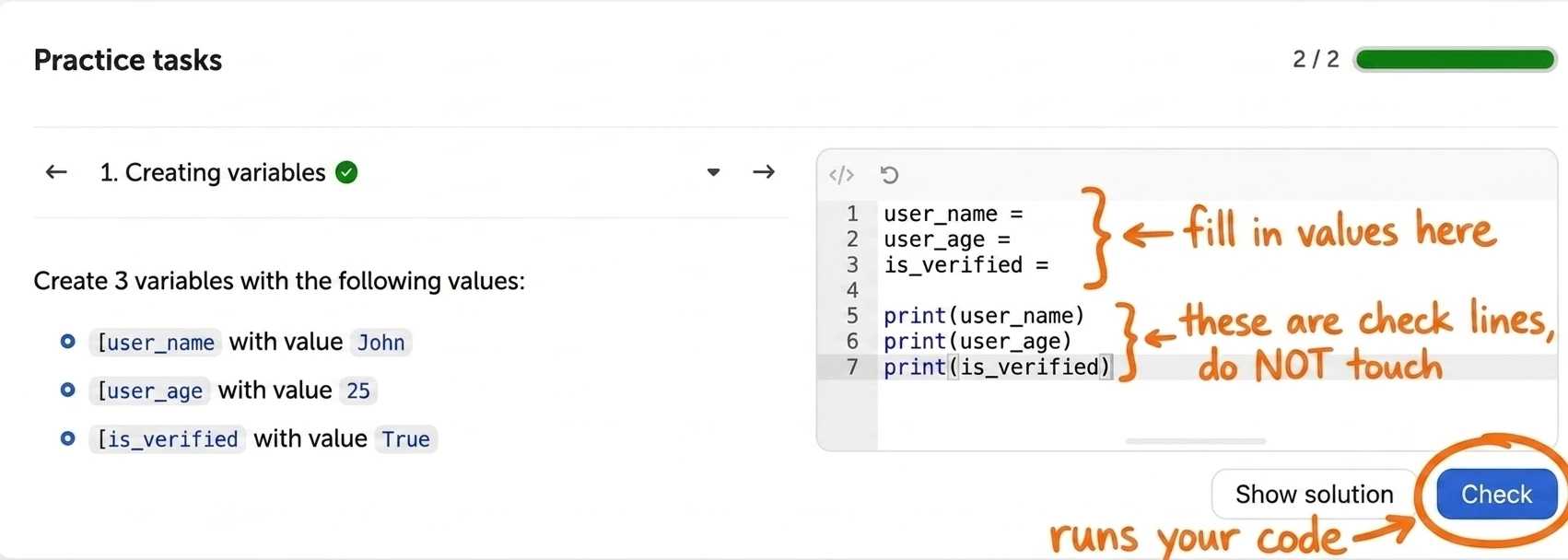
The left side is the task description: what to name and with which values. The colored badges in the description (for example, John, 25, True) are the exact values the code expects.
The "Check" button runs your code and compares the result against the tests. You can press it as many times as you like.
What exactly gets checked
Below the editor there are tabs: "Result" and next to it "Test #1", "Test #2" and so on. A task only counts when every test passes.
Each test tab shows exactly what will be checked: a line of code and the value it should produce. For example, "Test #2" reads user_age and expects to find 25 there. You can open the tests at any point, including before the first check.
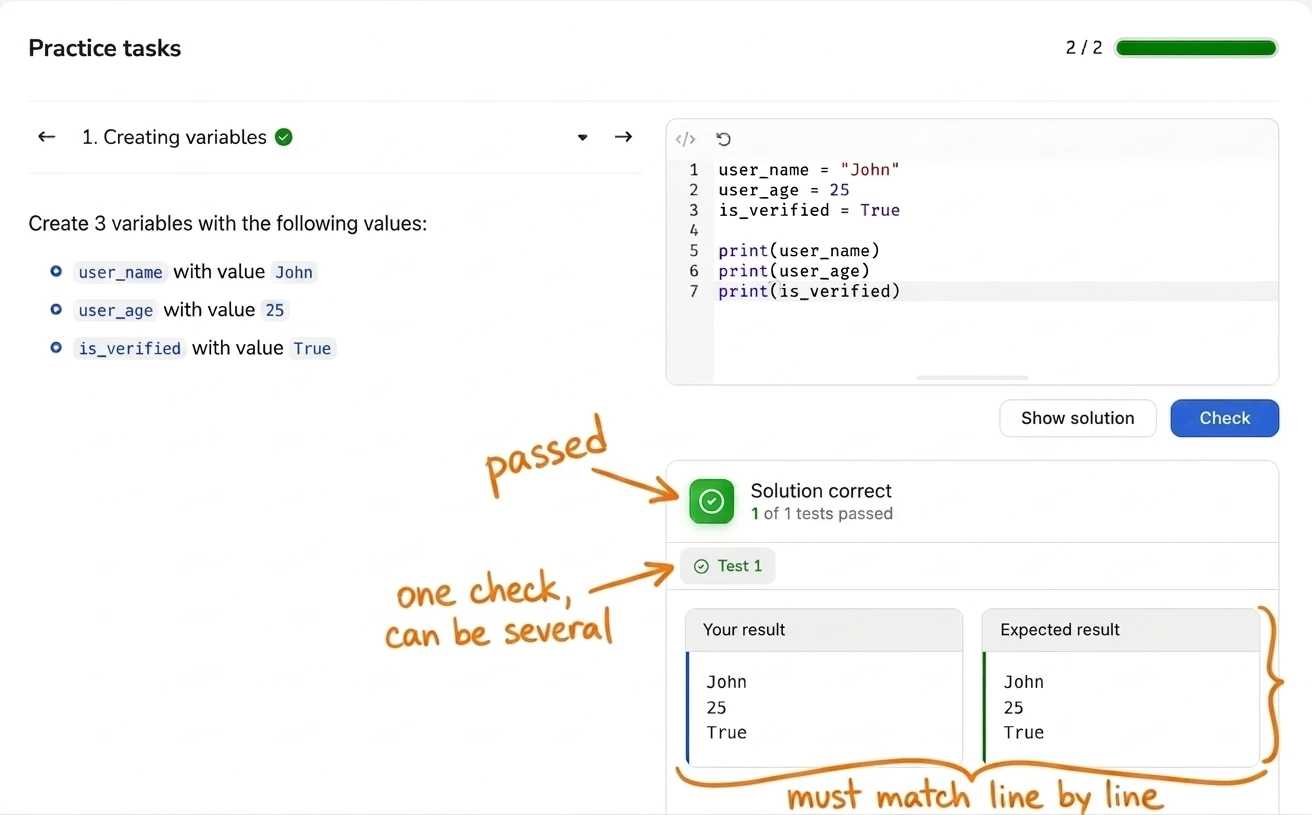
After the check each tab gets a mark: a green checkmark on the tests that passed, a red cross on the ones that didn't. A failed test opens on its own, and below its code an "Actual result" box appears with the value that actually came out. Compare it with the expected one and the difference becomes obvious.
The "Result" tab holds the overall summary (how many tests passed) along with everything you printed with print(). That comes in handy when you want to peek at intermediate values while solving.
In the next lesson we'll wrap code into functions: how to give a piece of code a name, pass values into it and get a result back.